
 kevin@skalia.ca


Sales Navigator for Prospecting: The 2026 Usage Guide

Sales Navigator is packed with filters and options, but most sales reps only use a fraction of them. Here's how to build precise searches, track your lists, and leverage signals to prospect smarter in 2026.
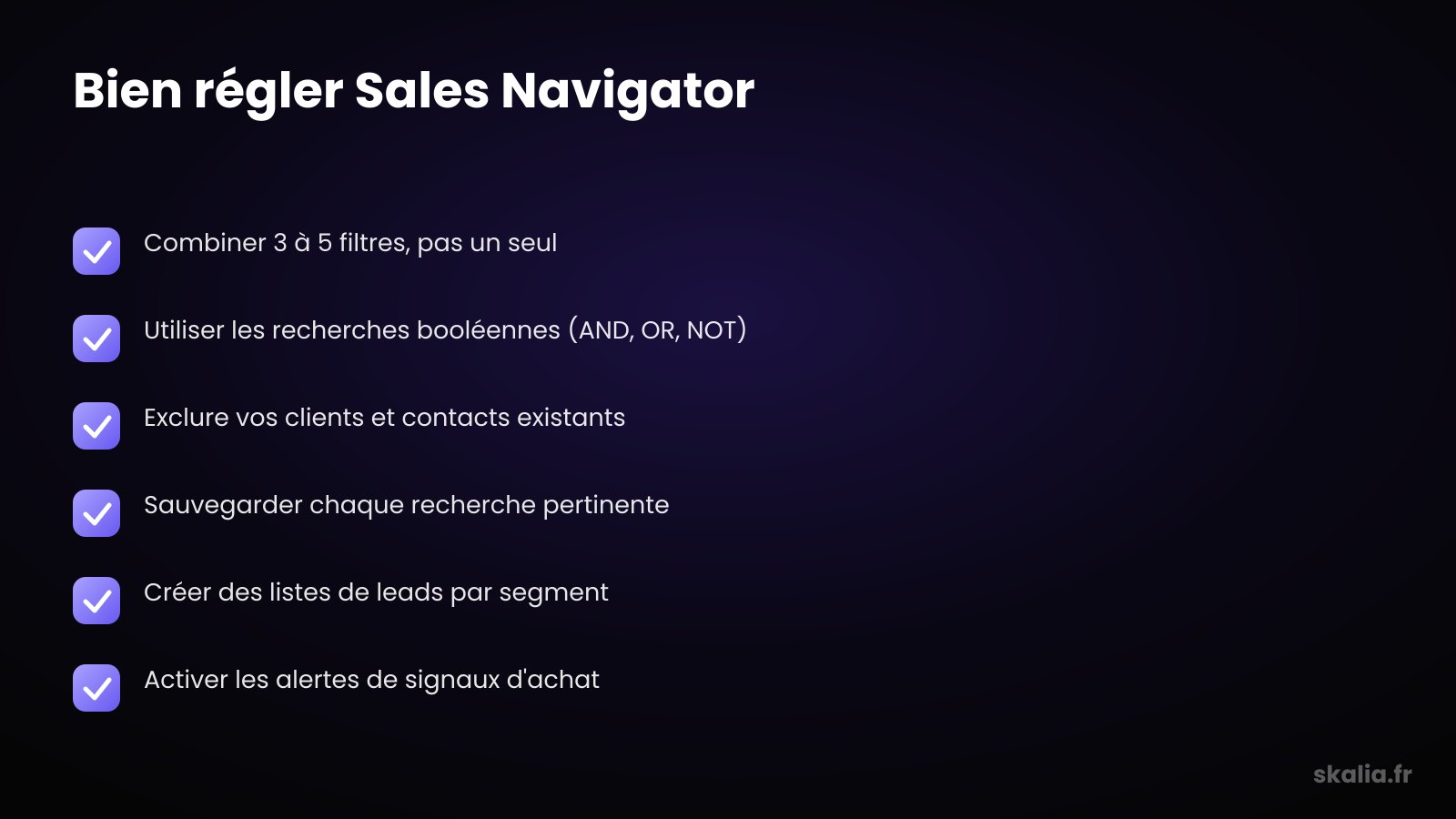
- Combine 3 to 5 advanced filters instead of just one to get a truly targeted list.
- Use Boolean search operators (AND, OR, NOT) on job titles to refine results.
- Build lead lists and save your searches so nothing slips through the cracks.
- Leverage signals (job changes, company news) to reach out at the right moment.
How Do You Use Sales Navigator Effectively for Prospecting in 2026?
Using Sales Navigator effectively starts with building precise searches by combining multiple filters, then turning those results into lead lists you track over time. The tool isn't meant for sending messages — it's meant for targeting and spotting the right moment to reach out.
Most users type in a job title, run the search, and stop there. That's the classic mistake. Sales Navigator delivers real value once you stack multiple criteria and let the tool monitor your targets for you.
This guide walks through everything from defining your target to reading buying signals. No theory — just concrete settings you can apply today. If you're still weighing which subscription to pick, we compared LinkedIn Premium and Sales Navigator in detail.
Where Should You Start Before Opening Sales Navigator?
Before touching a single filter, define your ideal customer profile (ICP): industry, company size, decision-maker function, and geographic area. Without this foundation, every search will return hundreds of off-target profiles, and you'll waste precious time sorting through them.
Write down three things in black and white: who decides, who influences, and who uses. These three roles don't share the same job titles or the same concerns. An executive responds to a profitability angle; an operations manager responds to a time-saving angle.
Set a reasonable list size too. Targeting 100 to 200 well-qualified accounts beats 2,000 vague profiles. A narrow target allows for personalized messaging, and personalization remains the top driver of response rates in LinkedIn prospecting. To lay the groundwork for your approach, our LinkedIn prospecting method breaks down every step.
How Do You Build a Precise Search With Advanced Filters?
A precise search combines 3 to 5 filters rather than just one, which cuts out more than half the noise in most cases. Sales Navigator offers around thirty filters — your job is to pick the right ones and stack them intelligently.
Start with the structural filters: function, seniority level, company size, and industry. Then add geographic area and, where relevant, time in current role. Each additional filter tightens the target and increases the relevance of your messages.
The Filters Worth Prioritizing
Some filters carry more weight than others. Here are the ones that deliver the most value in B2B prospecting, with a concrete use case for each.
| Filter | Use | Example |
|---|---|---|
| Function + Seniority level | Target decision-makers, not interns | Marketing function, Director level |
| Company headcount | Adapt the message to company size | 11 to 50 employees for a small business |
| Industry | Speak the language of the sector | Software, healthcare, manufacturing |
| Time in role | Spot new arrivals | Less than 6 months in the role |
| Keywords in job title | Refine beyond LinkedIn's standard categories | "acquisition" OR "growth" |
| Headcount growth | Spot companies that are hiring | +20% over 12 months |
Using Boolean Search Operators
Boolean operators refine your search on job titles and keywords. Three operators are all you need: AND, OR, and NOT, written in capital letters.
- **AND**: both terms must appear. Example: "manager" AND "sales".
- **OR**: either term, useful for covering variants. Example: "CEO" OR "founder" OR "owner".
- **NOT**: excludes an unwanted term. Example: "marketing" NOT "intern".
- **Quotation marks**: search for the exact phrase. Example: "acquisition manager".
- **Parentheses**: combine logic. Example: ("growth" OR "acquisition") AND "manager".
These queries avoid false positives. A simple "sales" search returns a huge variety of profiles; a Boolean query targets exactly the titles you're after.
How Do You Create and Track Lead Lists?
Once your search is dialed in, save it and turn the best results into a lead list — this is where prospecting becomes organized. Sales Navigator then alerts you the moment a profile on your list changes, without you having to rerun the search.
Build lists by segment rather than one catch-all list. For example: one list per industry, or one per pipeline stage (to contact, in progress, on hold). This structure prevents duplicates and gives you a clear view of your pipeline.
Save your searches too. Sales Navigator automatically surfaces new profiles that match your criteria, feeding your pipeline effortlessly. Finally, remember to exclude existing clients and contacts — a common oversight that clutters lists. To avoid burning out your account, respect LinkedIn's messaging quotas once you start reaching out.
How Do You Leverage Buying Signals?
Buying signals are events that indicate a prospect is more receptive: a job change, a funding round, headcount growth, or a recent post. Reaching out to a prospect within 90 days of a job change noticeably boosts your odds of a reply, since they're actively looking to prove themselves in the new role.
Sales Navigator displays these signals directly on your lead lists. Three deserve your attention: new roles (the decision-maker is redefining priorities), company news (hiring, growth), and recent LinkedIn activity (a post you can comment on before reaching out).
The principle is simple: one message sent at the right time is worth ten sent at random. That's the core of signal-based selling, an approach that trades blind volume for timing. Combine these signals with a personalized hook, and your response rate climbs without any extra effort.
What Mistakes Should You Avoid With Sales Navigator?
The most common mistake is confusing a targeting tool with a mass-messaging tool: Sales Navigator is built for qualifying prospects, not for spamming them. Many users cancel their subscription thinking it's useless, when in reality they were only ever using a single filter.
Here are the most frequent pitfalls to avoid:
- **Using only one filter**: your list stays too broad and your messages too generic.
- **Ignoring saved searches**: you redo the same work every week.
- **Forgetting to exclude your own contacts**: you end up prospecting people you already know.
- **Sending messages from Sales Navigator without personalizing them**: the channel doesn't replace the effort of writing well.
- **Neglecting signals**: you reach out at the wrong time and dilute your efforts.
Another pitfall: trying to do everything from LinkedIn alone. The most effective prospecting combines several channels. A multichannel LinkedIn and email sequence often outperforms a single channel, because each touchpoint reinforces the next.
How Should You Structure Your Daily Prospecting Routine?
An effective routine fits into three short time blocks per day rather than one weekly marathon session. Consistency beats intensity: 30 minutes every morning is worth more than 4 hours on a Friday.
Break your day down like this: in the morning, review signals and identify which prospects to contact first. Around midday, personalize and send your messages. At the end of the day, update your lists and note the follow-ups to schedule.
This discipline avoids two common traps: forgetting follow-ups and firing off messages on autopilot without thinking. Sales Navigator gives you the raw material; your organization is what turns it into booked meetings.
Is Sales Navigator Enough for High-Performing Prospecting?
No — Sales Navigator is an excellent targeting tool, but it replaces neither a clear strategy nor the quality of your messaging. Used well, it saves you hours of research and puts you in front of the right people at the right time. Used poorly, it becomes just another dormant subscription.
At Skalia, we build prospecting systems where Sales Navigator feeds precise targeting into personalized, multichannel sequences. The tool is just one building block — what matters is the complete mechanism, from signal to booked meeting. Want to structure your acquisition without spreading yourself thin? Our focused acquisition strategy lays out the framework. Let's talk.
FAQ
Is Sales Navigator Mandatory for Prospecting on LinkedIn?
No, but it's a game-changer once you prospect at volume. Without it, you're limited to basic search filters and you miss out on buying signals. For occasional use, a free account may be enough; for a structured approach, the subscription pays for itself quickly.
How Many Leads Can You Save in a List?
Sales Navigator lets you save several thousand leads spread across multiple lists — plenty to cover a serious prospecting effort. The right instinct isn't to save everything, but to segment: several targeted lists beat one giant list you can't realistically track.
Do Boolean Searches Work on All Filters?
Boolean operators (AND, OR, NOT) mainly apply to keyword fields and job titles, not to dropdown filters like industry. Reserve them for titles and free-text keywords, where they genuinely make a difference in refining your target.
Can You Send Messages Directly From Sales Navigator?
Yes, through the InMails included in your subscription, but the number is capped each month. Sales Navigator remains primarily a targeting tool. For sending, most teams combine standard connection requests with email, respecting the quotas to protect their account.